Guides/Captions and voices
Text to speech and voice cloning
Type a script, pick a voice, and the read lands on the timeline. Where the button is, which of the three voice models to use, and how to clone a voice from a recording.
Where the button is
Text to Speech is the speaker button on the timeline tray, the last of the editing tools. It is also in the File menu as Text to speech…, and on a phone it is Speak on the bottom strip. There is no keyboard shortcut.

The speaker opens Text to speech.
Generate a voice
- Put the playhead where the voice should start. If a title is selected, its words pre-fill the script and the voice lands at that title’s start instead.
- Click Text to Speech.
- Type the narration into Script. The line under the box estimates the length of the read.
- Pick a Model and a Voice (see below).
- Click Generate speech.
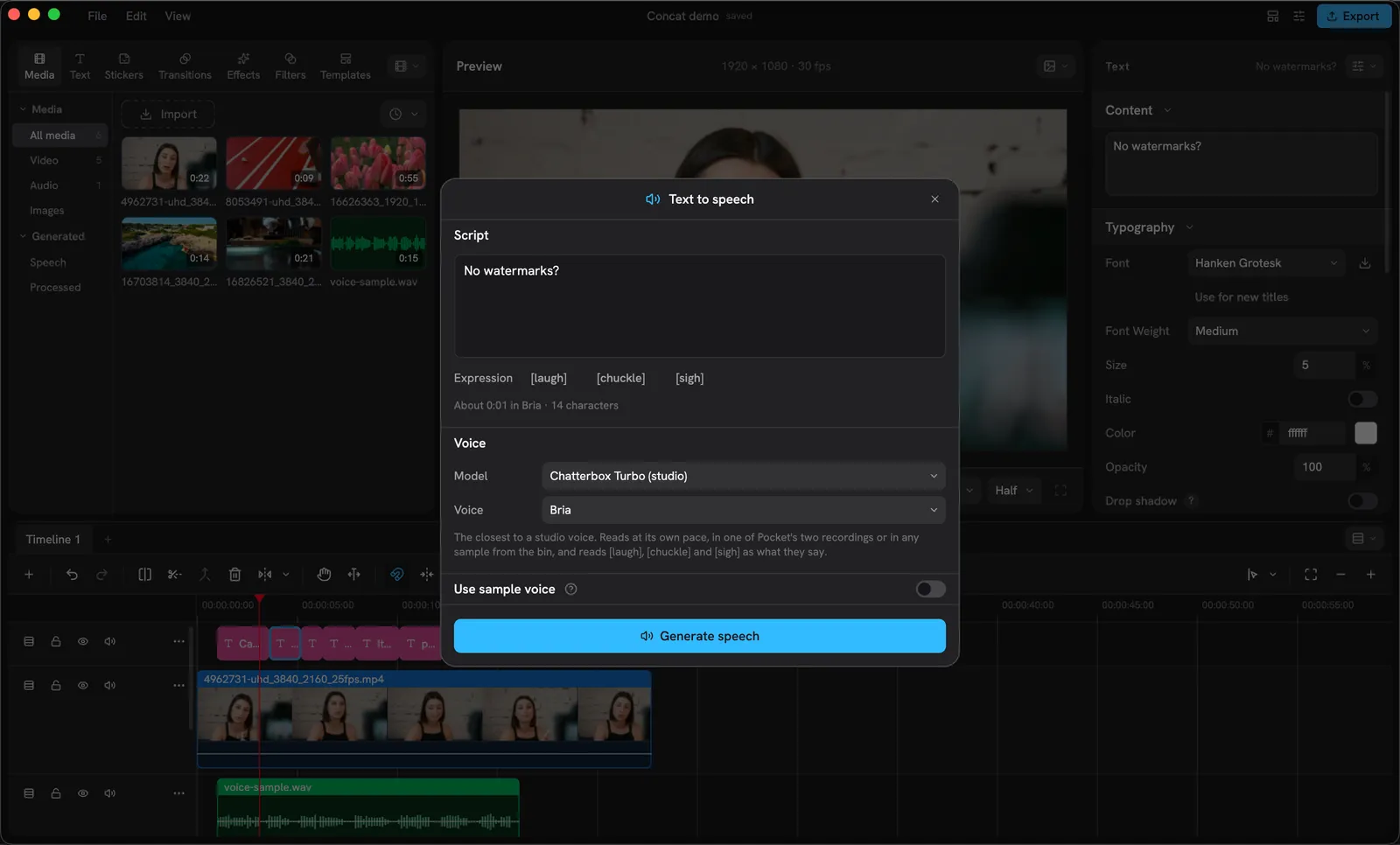
The sheet, with the selected title’s words already in the script.
The sheet shows “Generating voice” with a percentage. When it is done, a toast says “Voice added
to the timeline”: the read is a WAV in your project’s audio folder, it is in the Library under
Generated › Speech, and it sits as a clip on the first free lane at the playhead.
The three models
| Model | Good for | Voices | Size |
|---|---|---|---|
| Kokoro | Built-in speakers, fast. English and Chinese. Has Speed and Pauses sliders. | 36 named speakers, American, British and Chinese, female and male | 132 MB |
| Pocket TTS | Any voice from a few seconds of a recording. English. Quick, Balanced or Fine quality. | Bria and Loona, two recordings that ship with it, or any clip in your bin | 98 MB |
| Chatterbox Turbo | The closest to a studio read. Reads at its own pace and acts out [laugh], [chuckle], [sigh]. Slow. | Pocket’s two recordings, or any clip in your bin | About 1.1 GB |
The Model picker shows each one with a subtitle: “Built-in speakers · fast”, “Any voice, from a recording”, “Studio voice · slow”. With Chatterbox picked, an Expression row under the script inserts the three tags at the cursor.
Clone a voice
Pocket TTS and Chatterbox can read in any voice they are given a few seconds of.
- Import a recording of the voice, or use a clip that is already in the bin. Ten seconds of clean speech is plenty.
- In the Text to speech sheet, pick Pocket TTS or Chatterbox Turbo.
- Turn on Use sample voice.
- Pick the recording under Sample, and drag Voice from to a point where the person is talking: the model listens to the ten seconds from there.
- Generate.
If a clip with sound is selected on the timeline when you open the sheet, it is already the sample. The sheet refuses with “Pick a sample with a voice in it” when the clip is silent.
Put the words on screen too
Select the generated clip and click Generate Captions: the read is transcribed back into titles, timed to the voice. See auto-captions.